Wi-Fi Net card with USB port also called Wi-Fi Adapter or Wi-Fi Dongle. Traditionally Net Card more refers to PCIE WiFi Card.
Choosing the right WiFi network card (adapter) can feel overwhelming with so many technical terms and options available. Whether you are upgrading an old desktop, setting up a gaming rig, or just need internet on the go, the right choice boils down to your specific needs and environment.
Here is a comprehensive, step-by-step guide on how to choose the perfect WiFi card, broken down by key factors:
1. Choose the Right Interface (Form Factor)
The interface determines how the card connects to your computer. This is the most critical decision you’ll make.
- USB WiFi Adapter:
- Best for: Laptops, frequent travelers, and users who want a plug-and-play experience.
- Pros: Extremely portable, easy to install (just plug into a USB port), and works on almost any device. Great for quickly adding WiFi to a desktop or laptop.
- Cons: Can be slower, prone to overheating during heavy use, and easier to lose.
- Tip: Ensure you get one with a USB 3.0 (or newer) interface, as USB 2.0 is too slow for modern high-speed internet.
- PCI-e (PCI Express) WiFi Card:
- Best for: Desktop PCs, gamers, and heavy downloaders/streamers.
- Pros: Plugs directly into your motherboard, offering the most stable connection, lowest latency, and highest speeds. Less prone to interference.
- Cons: Requires opening your computer case to install. Not portable.
- M.2 / NGFF Card:
- Best for: Upgrading the internal WiFi card of a laptop or a mini-PC.
- Note: Ensure your device has an available M.2 slot and that the card’s key type (usually A or E key) matches your slot.
2. Match the WiFi Standard (Protocol)
WiFi technology evolves rapidly. To get the best speed, your adapter must support the same standard as your home router.
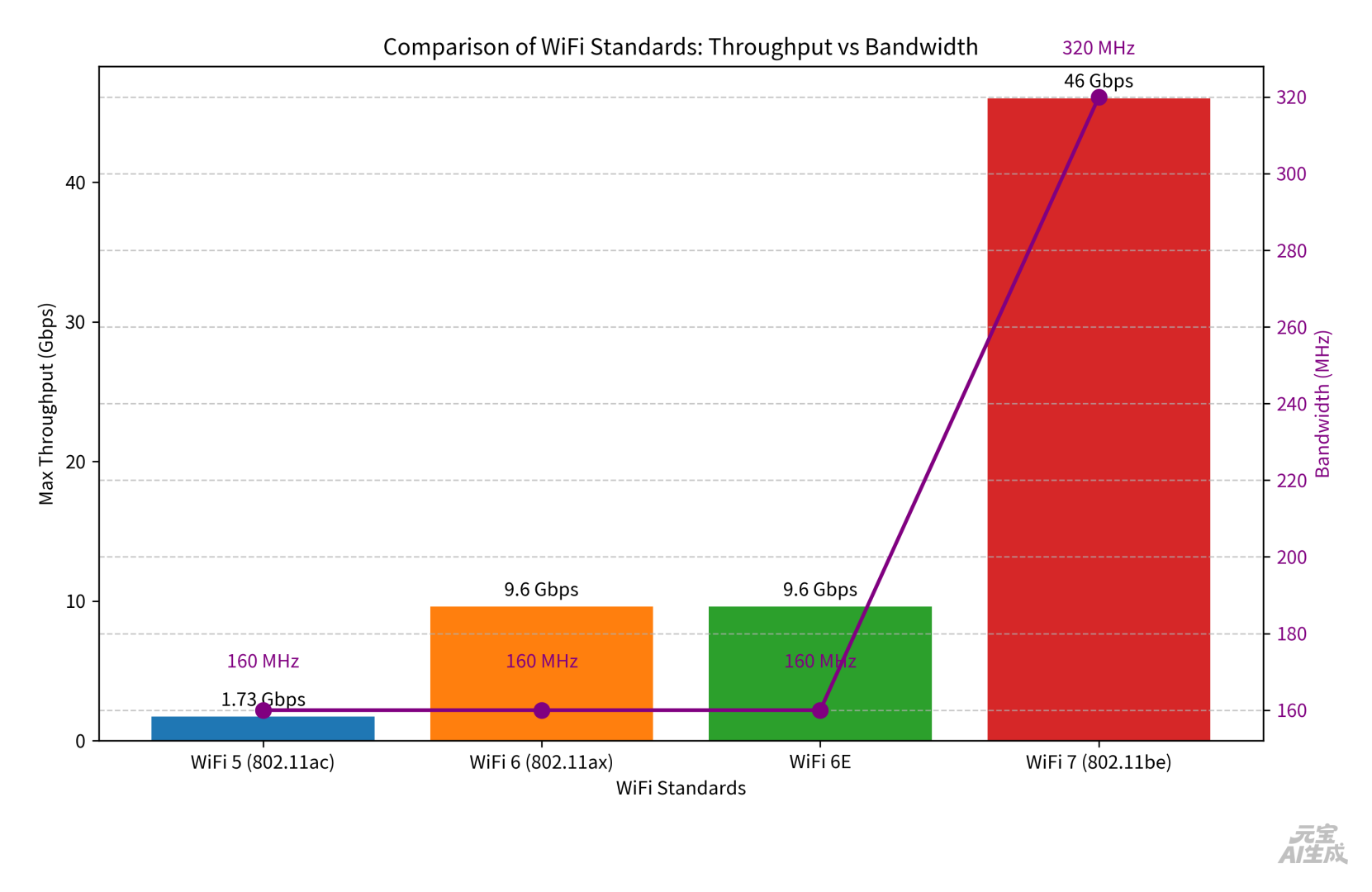
- WiFi 5 (802.11ac): The older standard. Maxes out at 1.73 Gbps. Only consider this if you have an old router and a tight budget.
- WiFi 6 (802.11ax): The current mainstream standard. Offers faster speeds (up to 9.6 Gbps), better performance in crowded areas (like apartments), and improved battery life for your devices. Highly recommended for most users.
- WiFi 6E: An extension of WiFi 6 that adds the 6 GHz band. Provides a “clean” spectrum with less interference. Great if you live in an area with heavy WiFi congestion.
- WiFi 7 (802.11be): The newest, cutting-edge standard. Features massive speed boosts (up to 46 Gbps theoretically), 320 MHz bandwidth, and Multi-Link Operation (MLO). Choose this if you want future-proofing and have a top-tier router, though it is more expensive. (Note: The 6 GHz band is not yet available for consumer use in some regions like mainland China).
3. Consider the Frequency Bands
Most modern cards support dual-band or tri-band frequencies:
- 2.4 GHz: Longer range and better at penetrating walls, but slower speeds and highly susceptible to interference from microwaves and Bluetooth devices.
- 5 GHz: Much faster speeds and less interference, but has a shorter range and struggles to pass through walls.
- 6 GHz (WiFi 6E / 7): The fastest and cleanest band, but has very short range and poor wall penetration. Be noted that some countries or regions don’t permit 6GHz for WiFi purpose.
- Recommendation: Always choose a Dual-Band (2.4 GHz + 5 GHz) or Tri-Band card. Avoid 2.4 GHz-only adapters.
4. Evaluate Antenna Types
Antennas determine how well your card can send and receive signals.
- Internal / Built-in Antennas: Compact and look cleaner, but generally have weaker signal reception. Common in USB nano adapters.
- External Antennas: Provide much stronger signal reception and can often be adjusted or removed. A must-have for gaming or if your computer is far from the router. PCI-e cards usually come with external antennas, such FPC antennas inside the computer case.
5. Check for Special Features
- Bluetooth: Many PCI-e WiFi cards and some USB adapters come with built-in Bluetooth. This is incredibly handy for connecting wireless headphones, mice, and keyboards without buying a separate Bluetooth dongle.
- Driver-Free (Plug & Play): Many USB adapters come with the drivers pre-installed in the device. You just plug it in, and it installs itself automatically. Highly recommended for beginners to avoid driver installation headaches.
💡 Summary: Which One Should You Buy?
| User Scenario | Recommended Interface | Recommended Standard | Key Feature to Look For |
|---|---|---|---|
| Casual Browsing / Office Work | USB 2.0 / 3.0 | WiFi 5 / 6 | Driver-free, Small form factor |
| Gamer / 4K Streamer / Heavy Downloader | PCI-e | WiFi 6 / 6E / 7 | External antennas, Low latency (MLO for WiFi 7) |
| Laptop Upgrade | M.2 (NGFF) | WiFi 6 / 6E | Check your laptop’s manual for supported slot keys |
| Need Bluetooth Too | PCI-e / M.2 | Any | Integrated Bluetooth 5.0 or higher |
Final Advice: Before buying, check what standard your router supports. Buying a WiFi 7 card for a WiFi 5 router is a waste of money. Aim for a WiFi 6 PCI-e card with external antennas if you want the best balance of performance, stability, and price for a desktop PC.